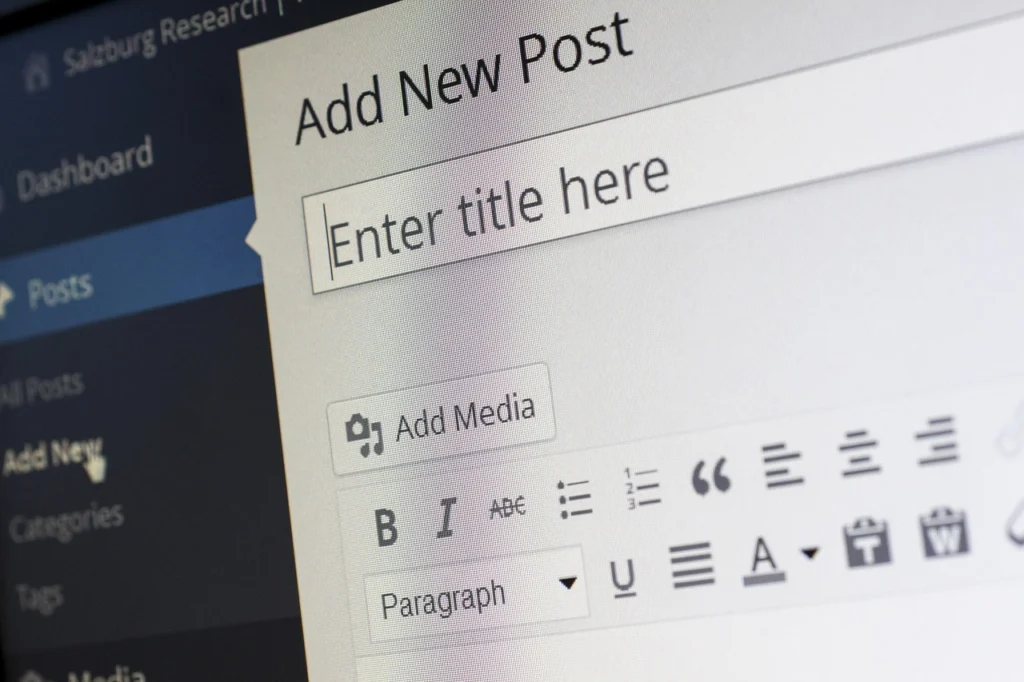
Manual vs Automated WordPress Backups: Which Strategy Wins?
Short answer: Automated backups are best for most sites because they run on schedule without human error. Manual backups give you full control but require discipline and time. The right choice depends on your site’s size, update frequency, and your tolerance for data loss risk.
Key takeaways
- Automated backups reduce human error and ensure consistency.
- Manual backups give full control but are easy to forget.
- Best practice: combine automation with periodic manual checks.
- Store backups off-site for safety during server failures.
- Test your backup restoration regularly to confirm it works.
What you will find here
Every site owner knows backups matter. But when it comes to actually doing them, you face a choice: do it manually or let a plugin automate it. Both approaches work, but they aren’t equal. If you pick wrong, you could lose weeks of work — or realize your backup is corrupt when you need it most.
I’ve managed migrations and recoveries for dozens of WordPress sites. I’ve seen manual backups save the day and automated ones fail silently. Here’s what you need to know to make the right call.

What Is a Manual WordPress Backup?
A manual backup means you log into your server, download your files, export your database, and store everything yourself. You might use cPanel’s file manager, an FTP client, or WP-CLI commands. No software runs automatically.
Manual backups give you total control. You decide exactly what gets backed up and when. You see the raw files and database. You know the process intimately. If you ever need to restore, you won’t be guessing what the plugin did.
But manual backups have a big downside: they rely on you. You have to remember to run them, actually do it, and keep everything organized. Miss one day and you lose that day’s work. If your site gets hacked right after a content update, your last backup might be a week old.
What Is an Automated WordPress Backup?
Automated backups run on a schedule set by you — daily, hourly, or weekly. Plugins like UpdraftPlus, BlogVault, or Jetpack Backup handle the heavy lifting. They compress files, export the database, and send everything to a remote storage location like Dropbox, Google Drive, or their own cloud.
The main advantage is reliability. Once configured, an automated system runs without you thinking about it. It backs up at the same time every cycle. You can set retention limits to keep, say, the last 30 daily backups. If something goes wrong, you have recent versions to fall back on.
The trade-off is less control. You trust the plugin to do its job. If the plugin has a bug or the remote storage fails, you may not know until you try to restore. That’s why testing restoration is critical — a backup you never test isn’t really a backup.
Comparing Manual vs Automated Backups: Key Differences
Let’s put the two side by side so you can see the trade-offs clearly.
| Aspect | Manual Backup | Automated Backup | |
|---|---|---|---|
| Reliability | Depends on your discipline | Runs on schedule automatically | |
| Speed | Slow, especially for large sites | Fast after initial setup | |
| Storage control | You choose every location | Limited to plugin integrations | |
| Technical knowledge | Requires comfort with server tools | No coding needed | |
| Error risk | Human error (forgetting, misnaming) | Plugin bugs or misconfiguration | |
| Restore ease | Manual steps required | Often one-click restore |
As you can see, automated backups win on consistency and ease. Manual backups give you control but demand time and attention. Neither is perfect — which is why many pros combine both.
When to Choose Manual Backups
Manual backups make sense in a few situations. If you run a small personal site that you update rarely — maybe once a month — a manual backup before each update is fine. You don’t need a daily schedule. You save the cost of a premium plugin.
Manual is also good when you’re about to make big changes, like a migration or a major plugin update. In those cases, I always recommend doing a manual backup in addition to whatever automated system you use. You want a snapshot you can trust, taken right before the change.
If you’re a developer comfortable with the command line, manual backups via WP-CLI can be faster than installing a plugin. Commands like wp db export and wp db import are reliable. But you still need a process to store those exports safely.
For a detailed walkthrough of the manual process, read How to Back Up a WordPress Site Before Migration – Step by Step. It covers the exact commands and steps I use.
When to Choose Automated Backups
Automated backups are the standard for active sites. If you publish content weekly, run an ecommerce store, or have multiple authors, you need daily or more frequent backups. You can’t afford to lose a day’s work.
Plugins also handle the off-site storage well. Storing backups on the same server is risky — if the server crashes, both your site and your backup disappear. Automated tools push backups to cloud services or email. That separation is critical for recovery.
Another advantage: incremental backups. Some premium plugins only back up what changed since the last run. This saves storage space and reduces server load. For large sites, that’s a game-changer.
But don’t just install a plugin and forget it. Test your restoration process quarterly. Many plugins let you restore to a staging site. Use that feature. It’s the only way to know your backups work.
Best Practices: Combining Both Approaches
In practice, I use a hybrid approach. My sites run automated daily backups to a remote cloud. But before any major change — like updating a theme, adding a new plugin, or migrating — I take a manual backup too. That way I have two layers of protection.
Here’s a step-by-step approach you can adopt:
- Set up an automated backup plugin: schedule daily backups for files and database. Store them off-site (e.g., Dropbox, S3).
- Configure retention: keep at least 14 daily backups and 4 weekly backups. Older ones can be purged.
- Before any major change: run a manual backup using your host’s tools or WP-CLI. Download the files to your local machine.
- Test your restore process every three months. Spin up a staging site and restore from backup.
- Monitor backup logs: check weekly that your automated backups completed without errors.
This balance gives you the efficiency of automation with the safety net of a manual checkpoint before risky actions.
Common Pitfalls to Avoid
Both methods have traps. For manual backups, the biggest mistake is sporadic scheduling. You run a backup today, then forget and skip two months. When something breaks, your backup is outdated. Set a calendar reminder if you go manual.
Another mistake: storing backups on the same server. If your host wipes your account, your backup goes with it. Always store at least one copy off-site, whether you use a plugin or upload via FTP.
For automated backups, the trap is blind trust. I’ve seen sites where the plugin silently stopped working after an update. The owner thought they were protected but had no recent backup. Watch for email notifications of failures, and check the plugin’s dashboard regularly.
Finally, never assume your backup works until you’ve restored it. A backup file that fails to import is worthless. Test early, test often.
Final Thoughts
If you’re asking which is best, the honest answer is: the one you’ll actually do consistently. For most site owners, that means automated plugins with a manual backup before major changes. For developers on small sites, manual backups with WP-CLI may be enough.
Whatever you choose, the key is to have a backup strategy — and test it. A backup you’ve never restored isn’t a backup; it’s a wish. Don’t wait until you need it to find out it fails.
Frequently asked questions
Can I rely solely on my hosting provider’s backups?
Hosting backups are a good safety net but not a replacement for your own. They may not run as frequently as you need, and some hosts only restore the entire account, not a single site. Always maintain your own backups for full control.
How often should I back up my WordPress site?
For active blogs or ecommerce sites, daily backups are recommended. Sites that update content weekly can use weekly backups. If you post multiple times daily, consider backups every few hours. Balance frequency with server load.
What’s the best way to store backup files?
Store backups off-site in at least two locations. Common choices are cloud storage services like Dropbox, Google Drive, or Amazon S3. A local copy on your computer or an external drive adds extra protection against remote failures.
Do automated backup plugins slow down my site?
Most plugins run backups in the background and have minimal impact. Scheduling backups during low-traffic hours reduces any load. Incremental backups process only changes, which is even lighter on resources.
Should I back up both files and the database?
Yes. Your database contains all posts, pages, and settings. Uploads, themes, and plugins are in the file system. A full backup includes both. If you only back up files, you’ll lose your content. If you only back up the database, you lose your media and custom code.



2 thoughts on “Manual vs Automated WordPress Backups: Which Strategy Wins?”